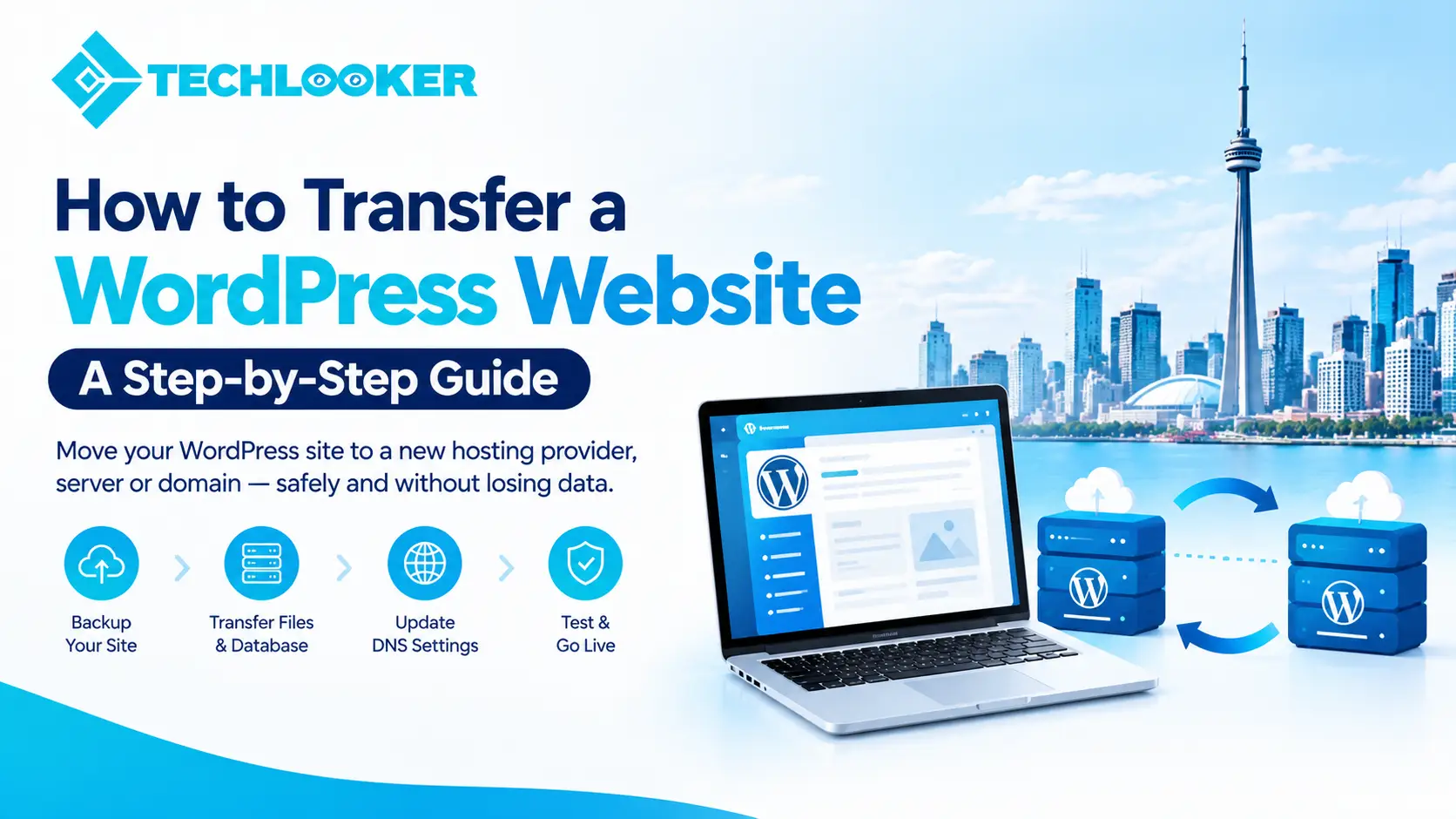
How to Transfer a WordPress Website: A Complete Step-by-Step Guide
Transferring a WordPress website to a new hosting provider, server, or domain may seem complicated, especially if you want to protect your website data, design, functionality, and search engine rankings. However, with the right preparation and migration process, you can move your website safely and minimise downtime.
Whether you are upgrading to better hosting, changing your domain name, moving a website from a local server to a live environment, or transferring a client’s website, understanding the WordPress migration process is essential.
In this guide, we will explain how to transfer a WordPress website step by step, including how to back up your files and database, migrate your website manually or with a plugin, update DNS settings, test the migrated website, and protect your SEO performance.
What Does Transferring a WordPress Website Mean?
Transferring a WordPress website means moving its files, database, and configuration from one environment to another while keeping the website functional.
Depending on your requirements, a WordPress migration may involve:
- Moving a website to a new hosting provider.
- Transferring a website to a different server.
- Changing your domain name.
- Moving a WordPress website from localhost to a live server.
- Transferring a website from one WordPress installation to another.
- Moving a client website to a new hosting account.
The steps vary depending on the type of transfer. For example, moving to new hosting while keeping the same domain usually involves transferring files and the database, whereas changing the domain also requires updating website URLs and managing redirects.
Why Should You Transfer Your WordPress Website?
There are several reasons why website owners decide to migrate their WordPress websites.
1. Better Website Performance
If your current hosting provider offers slow loading speeds or limited resources, moving to a better hosting environment may improve performance.
2. Lower Hosting Costs
You may find a hosting plan that offers better value, improved features, or more suitable resources for your website.
3. Improved Security
A new hosting environment may offer stronger security features, better backup options, and more reliable technical support.
4. Website Redesign or Development
Developers often transfer websites between staging and production environments during redesigns, upgrades, and development projects.
5. Domain Name Change
A business may change its domain to reflect a new brand, improve its online identity, or consolidate multiple websites.
Before migrating, identify the reason for the transfer so you can choose the appropriate method and avoid unnecessary changes.
Things to Do Before Transferring a WordPress Website
Preparation is one of the most important parts of a successful WordPress migration. Before changing anything, create a backup and confirm that you have access to all required accounts.
Create a Complete Website Backup
Back up both the WordPress files and the database.
Your files generally include:
- WordPress core files.
- Themes and plugins.
- Uploaded images and documents.
- Custom code and configuration files.
- The
.htaccessfile, where applicable.
Your database contains posts, pages, user information, settings, comments, and other website content.
You can create backups through your hosting control panel, a backup plugin, or manual tools such as FTP and phpMyAdmin.
Store a copy somewhere separate from your hosting account. Ideally, verify that the backup can be restored before beginning the migration.
Collect Your Hosting Credentials
Make sure you can access:
- Your current hosting control panel.
- Your new hosting account.
- FTP or SFTP credentials, if required.
- Database management tools.
- Your domain registrar or DNS management panel.
- WordPress administrator accounts.
You may also need access to email services, CDN settings, SSL configuration, and third-party integrations.
Check Your WordPress Version and Requirements
Review the PHP version, database requirements, installed plugins, theme compatibility, and storage requirements of the new hosting environment.
The new server should meet the requirements of your WordPress installation and its active plugins.
Record Your Existing DNS Settings
If you are changing hosting providers, note your current DNS records before making changes. These may include website records, email records, verification records, and subdomain configurations.
Changing nameservers without preserving necessary records can interrupt email delivery or other connected services.
Method 1: Transfer a WordPress Website Using a Migration Plugin
Using a migration plugin is often the simplest approach for small and medium-sized WordPress websites.
Plugins can package website files and database content into a migration archive or help transfer the site between supported installations. The exact process depends on the plugin and its current features.
Step 1: Choose a Suitable Migration Plugin
Popular options include:
- Duplicator: Creates website packages that can be installed on a new server.
- All-in-One WP Migration: Provides an export and import workflow for supported WordPress installations.
- Migrate Guru: Offers a guided migration service for compatible hosting environments.
- WPvivid Backup & Migration: Provides backup, export, and migration features.
Review each plugin’s current compatibility, archive size limits, hosting requirements, and paid-feature restrictions before choosing one.
Step 2: Install the Plugin on Your Existing Website
Log in to your WordPress dashboard.
Navigate to Plugins, select Add New Plugin, and search for the migration plugin you want to use. Install and activate it, or follow the developer’s official installation instructions.
Step 3: Export or Package Your Website
Open the plugin’s migration or backup interface.
Depending on the plugin, you may need to generate a complete backup, create a migration package, or connect the destination website.
Wait until the export process finishes. If the website is large, confirm that your hosting environment has sufficient memory, disk space, and execution time.
Step 4: Prepare the New WordPress Environment
Set up your new hosting account and create a destination WordPress installation if the plugin requires one.
Some migration tools install directly from an archive, while others import into an existing WordPress site.
Follow the selected plugin’s official instructions rather than mixing different migration methods.
Step 5: Import or Restore Your Website
Upload the backup or migration package to the new environment and run the import or installer process.
Depending on the tool, you may need to enter the destination database credentials or authenticate the destination website.
Avoid overwriting an existing production website until you have confirmed that its contents are backed up and that you are using the correct destination.
Step 6: Check the Migrated Website
After the import completes, check the homepage, important pages, images, menus, forms, plugins, and administrator login.
If the domain has changed, confirm that internal links and media URLs use the correct destination domain.
A plugin-based migration can save time, but it still requires testing before the website is considered ready.
Method 2: Transfer a WordPress Website Manually
Manual migration provides more control and can be useful for large websites, custom hosting environments, or situations where plugins encounter limitations.
However, it requires care when working with databases, file permissions, and configuration settings.
Step 1: Download Your WordPress Files
Connect to your existing server through SFTP or your hosting file manager.
Locate the WordPress installation directory, which often contains folders such as wp-admin, wp-content, and wp-includes, along with files including wp-config.php.
Download the required files to a secure location.
Include uploaded media, themes, plugins, custom files, and configuration files that are needed to reproduce the website. Do not expose configuration files or database credentials publicly.
Step 2: Export Your WordPress Database
Open phpMyAdmin or another database management tool provided by your hosting provider.
Select the database used by your WordPress installation and export it as an SQL file.
If you do not know which database is connected to your website, check the relevant database name and table prefix in wp-config.php.
Keep the exported database secure because it may contain personal information and account data.
Step 3: Create a Database on the New Server
Log in to your new hosting control panel and create a database.
Create a database user, assign the required privileges, and record the database name, username, password, and host information.
These details will be required when configuring WordPress on the new server.
Step 4: Upload Your Website Files
Use SFTP or the hosting file manager to upload your downloaded WordPress files to the correct document root on the new server.
Make sure the files are placed in the intended directory. Uploading them into an unintended subfolder can cause the website to appear at the wrong URL or return an error.
Step 5: Import Your Database
Open phpMyAdmin on the new hosting account.
Select the newly created database and use the Import option to upload your SQL backup.
Wait for the import to finish and verify that the expected WordPress tables are present.
For very large databases, your hosting provider may offer command-line database import tools or other supported methods.
Step 6: Update the WordPress Database Configuration
Open the wp-config.php file on the new server and verify the database configuration values.
A typical configuration looks like this:
define( 'DB_NAME', 'your_database_name' );
define( 'DB_USER', 'your_database_user' );
define( 'DB_PASSWORD', 'your_database_password' );
define( 'DB_HOST', 'localhost' );
Replace the example values with the actual details supplied by your hosting provider. The database host is not always localhost.
Preserve the other required configuration values, including the authentication keys and salts, unless you have a specific reason to change them.
Do not share the file publicly or commit database credentials to a public code repository.
Step 7: Update Website URLs if Necessary
If you are keeping the same domain, you may not need to change the main website URL.
If you are moving to a different domain, update the old URLs throughout the database using a WordPress-aware migration tool or a search-and-replace tool that correctly handles PHP serialized data.
WordPress databases can contain serialized values, so a simple SQL replacement may damage stored settings.
After a domain change, verify the WordPress Address and Site Address settings, internal links, image URLs, canonical tags, and any hard-coded URLs in the theme or plugins.
Step 8: Test the Website on the New Server
Before directing visitors to the new server, test the migrated site using a staging URL or a suitable hosts-file override.
Check the homepage, service pages, blog posts, images, contact forms, login, search, menus, and other essential functionality.
Resolve database connection errors, missing files, plugin conflicts, and permission issues before switching live traffic.
Method 3: Transfer a WordPress Website to a New Domain
Moving a WordPress website to a new domain requires additional steps because the domain change affects links, indexing, analytics, and potentially email or other services.
Follow this process:
- Back up your existing website files and database.
- Set up the new domain and hosting environment.
- Migrate your WordPress website.
- Update the WordPress Address and Site Address.
- Replace old URLs with new URLs using a serialization-safe tool.
- Configure HTTPS and verify the SSL certificate.
- Set up permanent redirects from old URLs to their corresponding new URLs.
- Update canonical tags, internal links, XML sitemaps, and relevant third-party integrations.
- Verify the new website in Google Search Console.
- Monitor crawl errors, indexing, traffic, and conversions after launch.
Set Up 301 Redirects
Permanent redirects help visitors and search engines reach the corresponding pages on the new domain.
For example:
should redirect to:
Where possible, redirect each old URL to its most relevant equivalent rather than sending every page to the new homepage.
Keep redirects in place for an appropriate long-term period, and update important backlinks and external profiles where possible.
Google provides guidance on site moves with URL changes.
Method 4: Transfer a WordPress Website to a New Hosting Provider Without Changing the Domain
If you want to change hosting providers but retain your existing domain, the migration process is generally more straightforward.
Follow these steps:
- Back up the existing website files and database.
- Set up the new hosting account and required database.
- Transfer the files and database to the new server.
- Configure WordPress and confirm that the site works on the destination server.
- Install or verify the SSL certificate.
- Test the website before changing DNS records.
- Update the required DNS records or nameservers.
- Confirm that the domain resolves to the new hosting environment.
- Check the website, email, forms, and integrations after the DNS change.
- Keep the old hosting active until the migration has been verified and any transition issues have been resolved.
DNS changes may take time to propagate, so some visitors may temporarily reach the old server while others reach the new one.
If your website receives regular orders, registrations, or form submissions, plan the migration carefully to avoid losing data written to the old database during the transition.
How to Avoid Losing SEO Rankings During WordPress Migration
A poorly managed migration can cause crawling problems, broken links, indexing changes, and temporary or lasting traffic losses. To minimise the risk, include SEO checks in your migration plan.
1. Keep the Same URLs Where Possible
If you are only changing hosting providers, preserve your existing domain and URL structure whenever possible.
Unnecessary URL changes introduce additional redirect and indexing work.
2. Create a URL Inventory
Record your important indexed pages before migration. Include service pages, blog posts, landing pages, and URLs that generate organic traffic or enquiries.
After migration, verify that these URLs return the correct status codes and display the expected content.
3. Check Robots.txt and Indexing Settings
Ensure the live website is not accidentally blocked from crawling or configured to discourage indexing.
Staging websites may intentionally use noindex directives, but those settings should be reviewed before launch.
4. Test Canonical Tags and Redirects
Confirm that canonical tags point to the preferred URLs and that redirects do not create chains, loops, or irrelevant destinations.
5. Verify XML Sitemaps
Check that the sitemap contains the correct live URLs and does not include obsolete or redirected pages.
Submit or resubmit the appropriate sitemap in Google Search Console when needed.
6. Monitor Search Console and Analytics
After migration, monitor indexing, crawl errors, organic traffic, conversions, and important landing pages.
If a problem occurs, investigate server responses, redirects, DNS, robots directives, and page availability rather than immediately assuming that the migration itself caused a ranking penalty.
For a domain change, consult Google’s official site-move documentation and monitor performance over the following weeks.
Common WordPress Migration Problems and How to Fix Them
Database Connection Error
Possible cause: Incorrect database credentials, missing database privileges, or the wrong database host.
Solution: Verify the database settings in wp-config.php, confirm that the database exists, and check that the assigned user has the required privileges.
Images Are Missing
Possible cause: Files were not transferred correctly, media URLs still reference the old domain, or file permissions are incorrect.
Solution: Confirm that the media files exist in the destination wp-content/uploads directory and verify the relevant URLs and permissions.
WordPress Redirects to the Old Domain
Possible cause: Old website URLs remain in the database, configuration, or cache.
Solution: Review the WordPress Address and Site Address, search for old URLs using a serialization-safe tool, and clear relevant caches.
404 Errors on Posts and Pages
Possible cause: Permalink rules or server rewrite configuration were not migrated correctly.
Solution: In the WordPress dashboard, open Settings, then Permalinks, and save the current settings. If the issue persists, check the server’s rewrite configuration.
SSL Certificate Errors
Possible cause: The certificate is missing, expired, incorrectly configured, or does not cover the destination domain.
Solution: Install or renew the correct certificate and verify HTTPS configuration before forcing HTTPS redirects.
Website Is Slow After Migration
Possible cause: Different server resources, caching settings, PHP configuration, CDN settings, or plugin behaviour.
Solution: Test performance, review server logs, verify caching, and check compatibility with the new environment.
Contact Forms or Emails Stop Working
Possible cause: Changed SMTP settings, DNS records, API credentials, or plugin configuration.
Solution: Test form submissions, verify email delivery, and check required DNS records and third-party integrations.
WordPress Migration Checklist
Use this checklist before declaring your migration complete.
- Create and verify a complete website backup.
- Confirm access to the source and destination hosting accounts.
- Record DNS, email, and third-party service settings.
- Check PHP, database, and plugin compatibility.
- Transfer all required website files.
- Export and import the database.
- Verify database credentials and WordPress configuration.
- Update URLs if the domain has changed.
- Configure HTTPS and verify the SSL certificate.
- Test important pages, images, forms, and user logins.
- Check redirects, canonical tags, and indexing directives.
- Verify XML sitemaps and Google Search Console.
- Confirm analytics, tracking, email, and integrations work.
- Monitor website performance and errors after launch.
- Retain the original backup and old hosting until the migration is verified.
Should You Hire a Professional WordPress Migration Service?
A simple website can often be migrated by following a well-documented process. However, professional assistance may be worthwhile if your website is large, generates regular revenue, contains custom functionality, or cannot afford significant downtime.
Consider professional support when:
- Your website contains a large database or extensive media library.
- Your website uses custom plugins, themes, or integrations.
- You are changing domains and need to protect organic visibility.
- Your website processes orders, bookings, registrations, or customer information.
- You are moving between significantly different hosting environments.
- You need a planned migration with testing, rollback procedures, and post-launch monitoring.
A professional migration should include a backup strategy, a clear scope, a testing plan, and a documented process for resolving problems.
How Techlooker Can Help With WordPress Website Migration
Moving a website involves more than copying files. Database configuration, URL handling, server compatibility, security, redirects, and testing all play important roles in a successful migration.
Techlooker helps businesses explore website development and digital solutions that align with their technical requirements and online growth objectives.
If you are planning to move your WordPress website to a new hosting provider, migrate to a new domain, or transfer a website as part of a redesign, discuss the project requirements before making changes.
A migration plan should identify the website’s current environment, destination hosting, expected downtime, critical functionality, SEO requirements, and post-launch support needs.
Planning a WordPress website migration? Visit Techlooker to explore its services and discuss the requirements for your website transfer.
Frequently Asked Questions
1. How do I transfer a WordPress website to another host?
Back up your WordPress files and database, prepare the new hosting environment, transfer the files, import the database, configure the database credentials, and test the website. Once everything works, update DNS records to point the domain to the new server and verify the live website.
2. Can I transfer my WordPress website without losing content?
Yes. A complete migration that includes the database and all required files should preserve your posts, pages, media, themes, plugins, and settings. However, you should always create a backup and verify the destination website because incomplete transfers or configuration errors can cause data loss.
3. How long does it take to transfer a WordPress website?
A small website may be migrated in a few hours, while a large website or complex application may require a day or longer. The timeline depends on website size, database volume, server access, integrations, testing, and DNS changes.
4. Can I transfer WordPress without a plugin?
Yes. You can migrate WordPress manually by downloading the website files, exporting the database, importing it into the new hosting environment, updating configuration settings, and testing the result. Manual migration requires more technical knowledge than a supported plugin-based process.
5. Will transferring my WordPress website affect SEO?
A hosting migration that keeps the same domain and URLs can often be completed without major SEO disruption. However, downtime, server errors, broken links, incorrect canonical tags, or accidental indexing restrictions can affect search visibility. Domain changes require additional URL mapping and permanent redirects.
6. Do I need to transfer my domain when changing hosting?
No. Your domain registration and website hosting are separate services. You can keep your domain with the existing registrar and update the necessary DNS records to point to your new hosting provider.
7. Can I transfer a WordPress website to a new domain?
Yes. Migrate the files and database, update old URLs using a serialization-safe tool, configure HTTPS, and set up permanent redirects from the old URLs to their new equivalents. Update relevant analytics, search engine, and third-party settings as well.
8. What should I do with my old hosting account after migration?
Keep the old hosting active until you have verified the new website, confirmed that important functionality works, and checked that necessary files and data have been transferred. Retain a secure backup before cancelling the old hosting plan.
9. Can I transfer a WordPress website without downtime?
You can often minimise downtime by preparing the new environment in advance, testing the destination, reducing DNS TTL where appropriate, and scheduling the DNS switch carefully. Zero downtime cannot be guaranteed because DNS propagation, application dependencies, and data changes may create transition issues.
10. Is it safe to transfer a WordPress website using a plugin?
A reputable migration plugin can simplify the process, but safety depends on the plugin, hosting environment, backup quality, and migration procedure. Use trusted software, follow current documentation, protect backup archives and credentials, and test the migrated website before switching live traffic.
Conclusion
Transferring a WordPress website is manageable when you follow a structured migration process. Start with a complete backup, prepare the destination environment, transfer the website files and database, verify the configuration, and test the website before switching traffic.
If you are changing domains, pay particular attention to URL updates, permanent redirects, canonical tags, and search engine monitoring. If you are changing only hosting providers, preserving the existing domain and URL structure can simplify the process.
For complex, business-critical, or SEO-sensitive websites, professional migration support can help reduce risk and make the transition more predictable.
Visit Techlooker to explore website development services and discuss your WordPress migration requirements.